
Bring Your Data In. Clean, Fast, Every Time.
Import Templates let you define how a spreadsheet maps to the CRM — once. Every batch after that takes minutes, not a morning. No reformatting. No guesswork. No duplicate records.
Start exploring with instant access. No payment required.
Most imports fail before a single row is saved
Columns don't match. Values are in the wrong format. Duplicates slip through. And you only find out after half the records are broken. Import Templates solve this before it happens.
Build the mapping once, test it against real data, and save it. From then on, anyone on the team can bring in a clean, consistent batch of leads, contacts, or accounts — without touching a single configuration.
Stop remapping the same columns every time
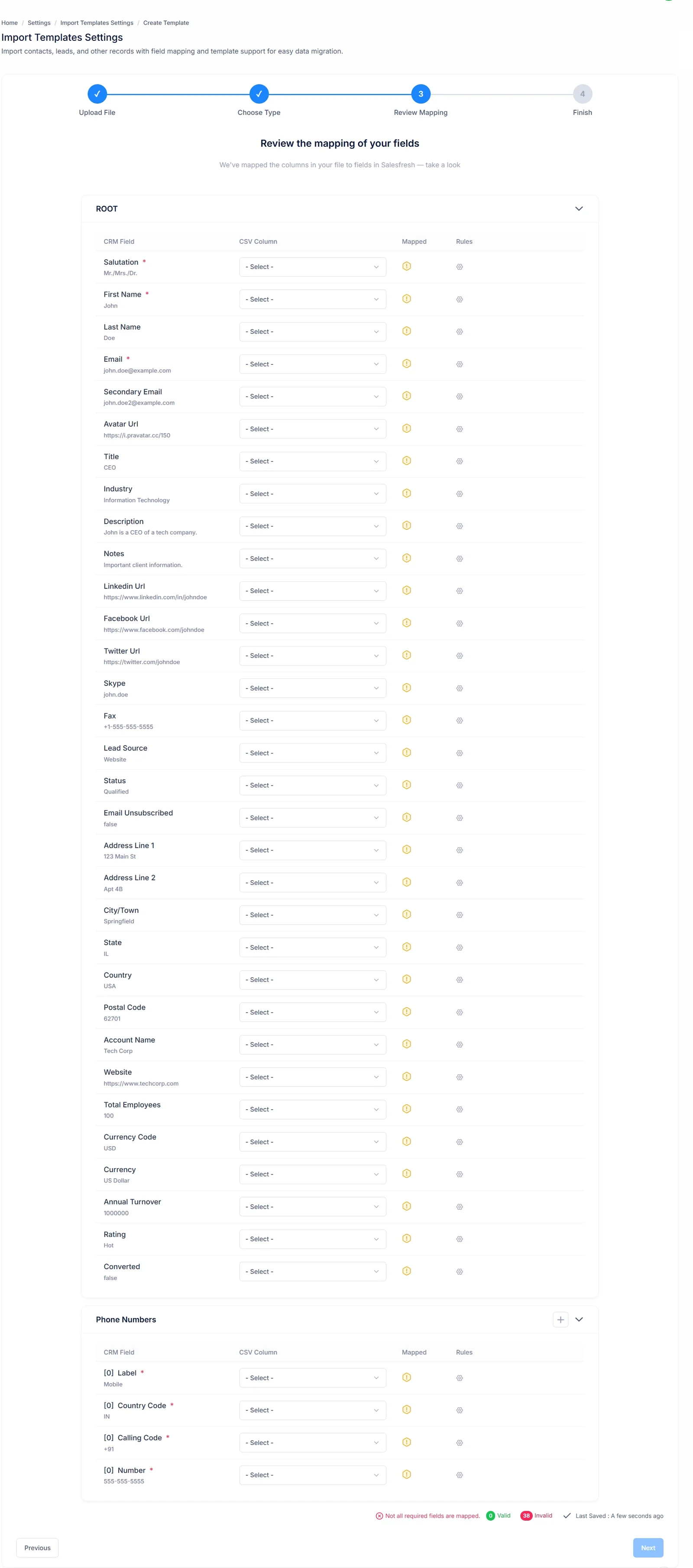
Define a mapping that connects each spreadsheet column to the right CRM field. Name it, save it, and reuse it for every future spreadsheet that follows the same structure. No guesswork, no manual matching.
- Map spreadsheet columns to CRM fields once
- Reuse the same mapping every time
- Works for Leads, Contacts, and Accounts
Handle messy data without cleaning it first
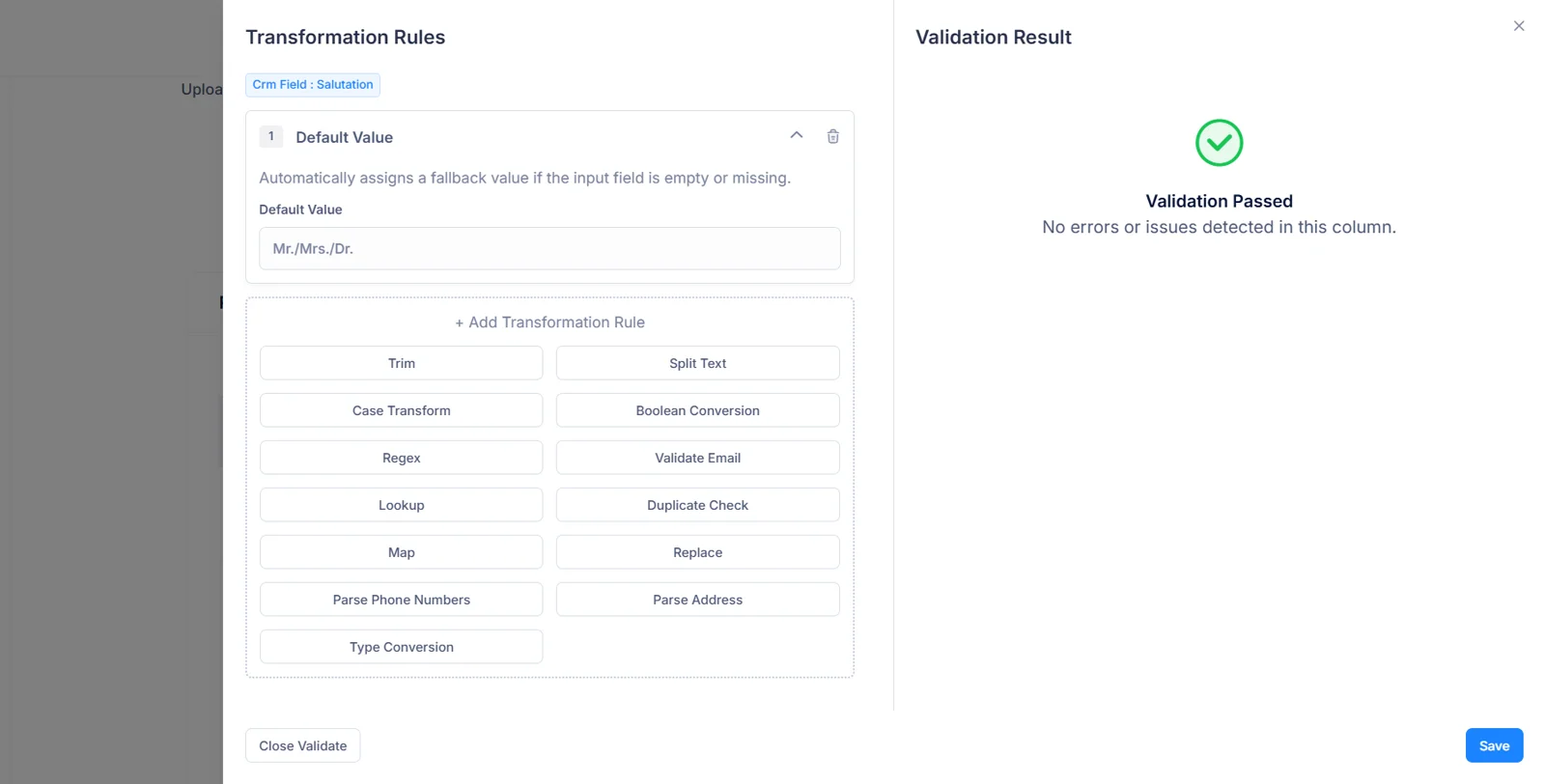
Data doesn't always arrive in the exact format the CRM expects. Transformation rules fix this automatically on the way in — combine name fields, reformat dates, map dropdown values to their correct codes. The file goes in as-is; clean data comes out.
- Concatenate, format, and lookup rules built in
- Applies automatically, row by row
- No spreadsheet cleanup before uploading
Preview before you commit
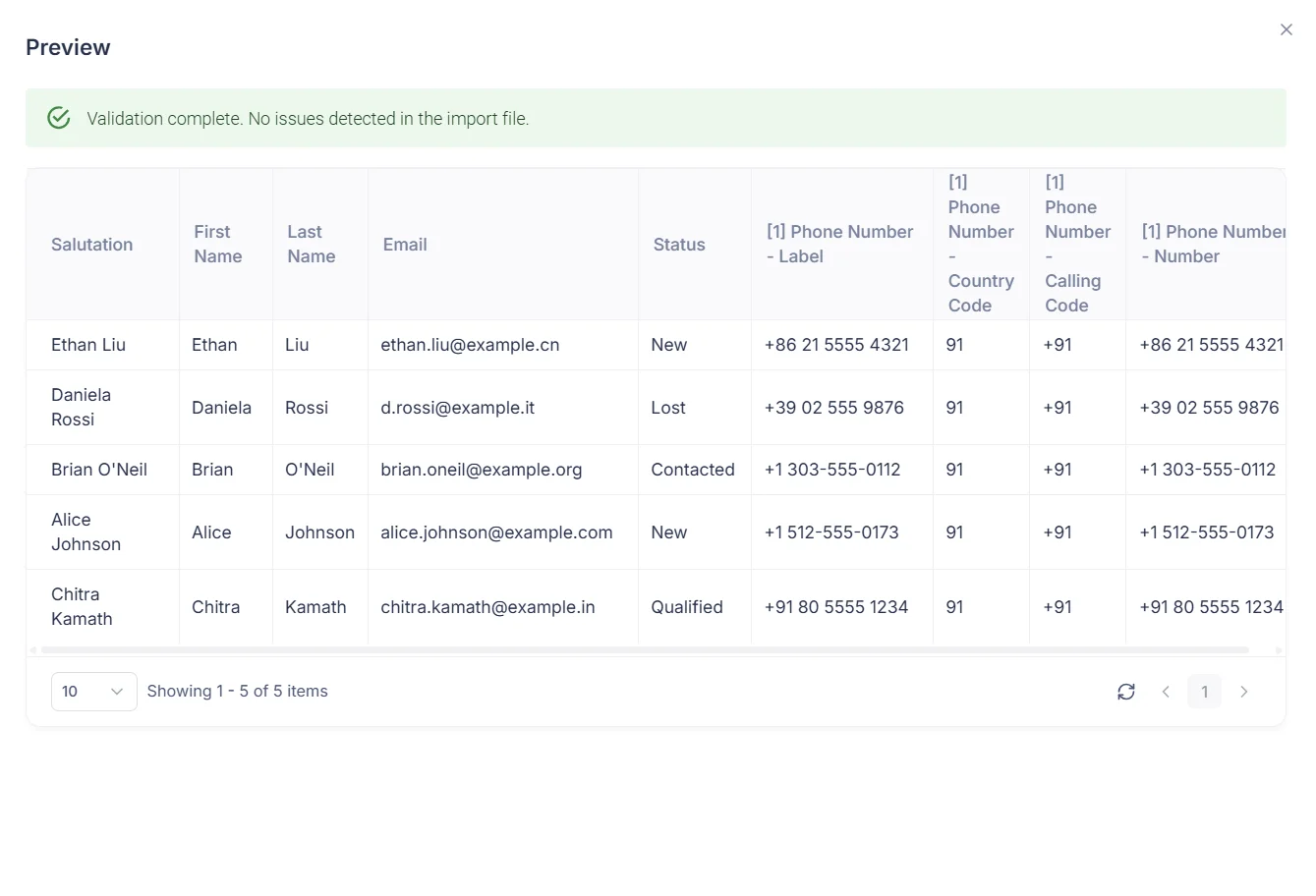
Not sure the rules are right? Run a preview to see exactly how the first rows will look after transformation — before a single record is saved. Catch problems early, adjust, and go ahead with confidence.
- See transformed rows before any data is written
- Highlights rows that will fail or need attention
- Adjust rules and re-preview instantly
Validate the structure instantly
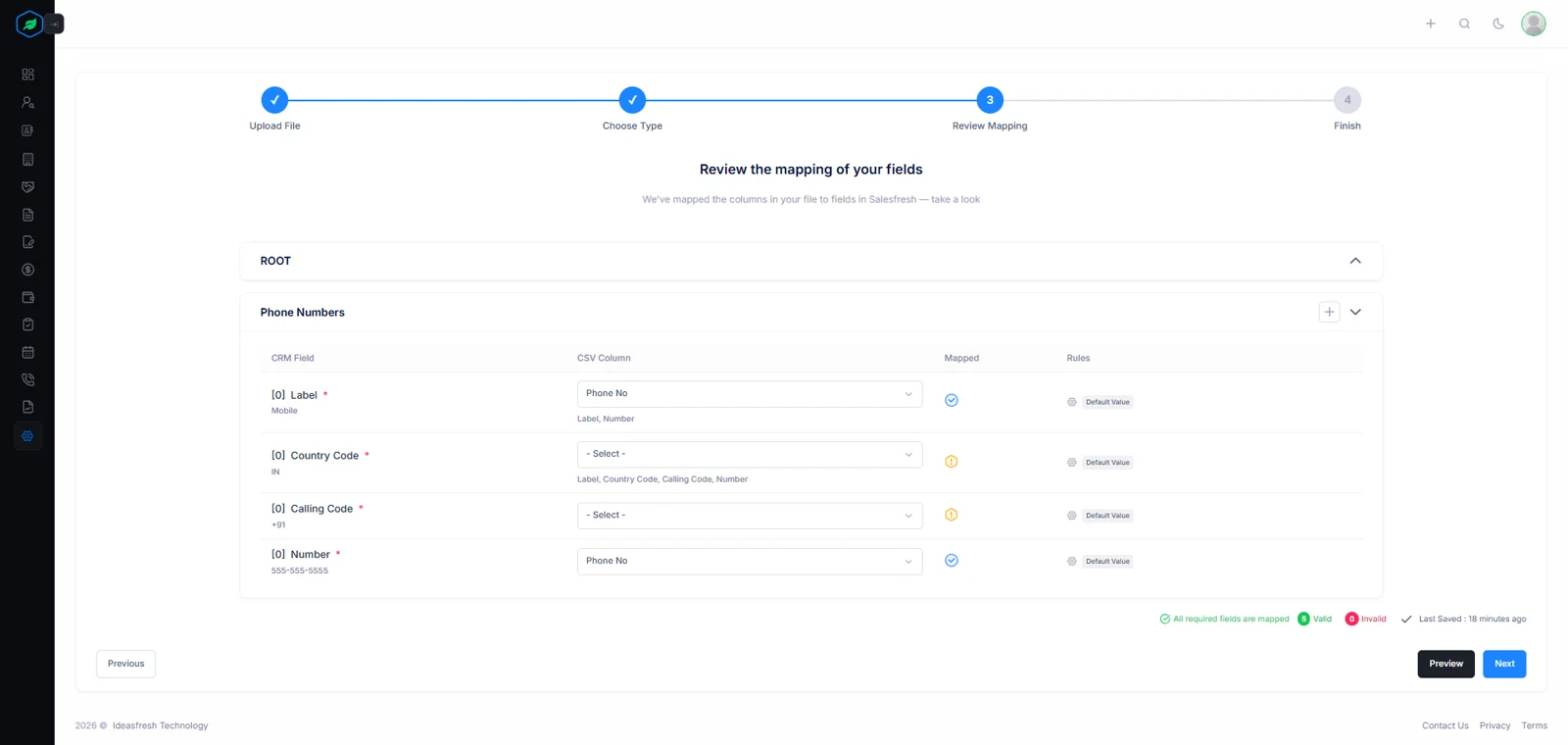
Upload a spreadsheet and run Validate to confirm it matches the saved mapping exactly. If anything is off, you'll know immediately — not halfway through 10,000 rows.
- Instant structure check before anything is saved
- Errors surfaced before any row is written
- Prevents broken, half-finished batches
The Benefit in Plain Terms
See exactly what changes once a saved mapping does the work.
The manual way
With Import Templates
Re-map columns by hand every single time
Map once, reuse forever
Discover format errors halfway through
Validate before a single row is saved
Duplicates slip into the CRM unnoticed
Automatic deduplication, every time
Only one person knows how it works
Any team member can run it correctly
Hours of spreadsheet cleanup beforehand
Transformation rules handle it automatically
Works With the Files You Already Have
Upload as CSV or Excel. The saved mapping remembers the layout — later batches just need to match it.
Comma-Separated Values
The universal standard for data exports. Compatible with every spreadsheet tool, CRM, or data platform you already use. Just export and upload.
Excel Workbook
Native Excel format support. Formatted sheets, multiple tabs — upload the workbook directly without stripping it down to plain text first.
From Raw Spreadsheet to Clean CRM in Six Steps
Set it up once. From then on, every new batch is just upload, validate, and run.
Create a New Template
Go to Settings → Import Templates and click New Template. Give it a name and select the entity type.
Select the Entity Type
Choose whether it brings in Leads, Contacts, or Accounts. Contacts and Accounts include address fields automatically.
Upload a Sample File
Upload a CSV or XLSX. The system reads its headers so you can start mapping them to CRM fields.
Map Columns and Add Rules
Connect each header to the correct CRM field. Add transformation rules for any data that needs reformatting.
Preview and Confirm
Click Preview to see how the first rows transform. When everything looks right, Confirm to set it to Ready.
Import Your Data
Go to Data → Import, upload the real spreadsheet, pick the saved mapping, validate the structure, and run it.
After the first run, steps 1–5 are already done — just upload and go.
Start for free · No credit card needed
Your first clean batch is
already waiting.
Set it up in minutes. After that it is just upload, validate, and done — clean data in the CRM every time.
Already using Salesfresh? Sign in to your account