Connect Outlook
Connect your Outlook mailbox to the CRM to sync and send email, choose who can connect it, and disconnect it.
Updated 12 October 2026 · 4 min read
The Outlook integration links your Microsoft 365 or Outlook.com mailbox to Salesfresh. Your emails come into the CRM and link to the right leads and contacts, and you can send email from the CRM through your own mailbox.
For example, an accountant's firm uses Microsoft 365. Each accountant connects Outlook. When a client emails about their tax return, the email shows on the client's record, so anyone covering for a colleague can read the whole conversation.
Before you start
- Gmail and Outlook are on the Starter plan and above. Your plan also sets how many mailboxes your company can connect. See Integrations overview.
- You need to be on Outlook's Allowed Users list, or have the Manage Integration permission. If you can't see Outlook, ask your admin to add you.
- Each person connects their own mailbox. You can connect Outlook or Gmail, not both.
- Connect the mailbox you sign in to Salesfresh with. A different address is refused.
Connect your mailbox
- Go to Settings > Integrations and click Outlook.
- Click Connect to Outlook. Microsoft opens.
- Sign in, and allow Salesfresh to read, send and organise your email.
- You come back to Salesfresh, and Outlook says Connected.
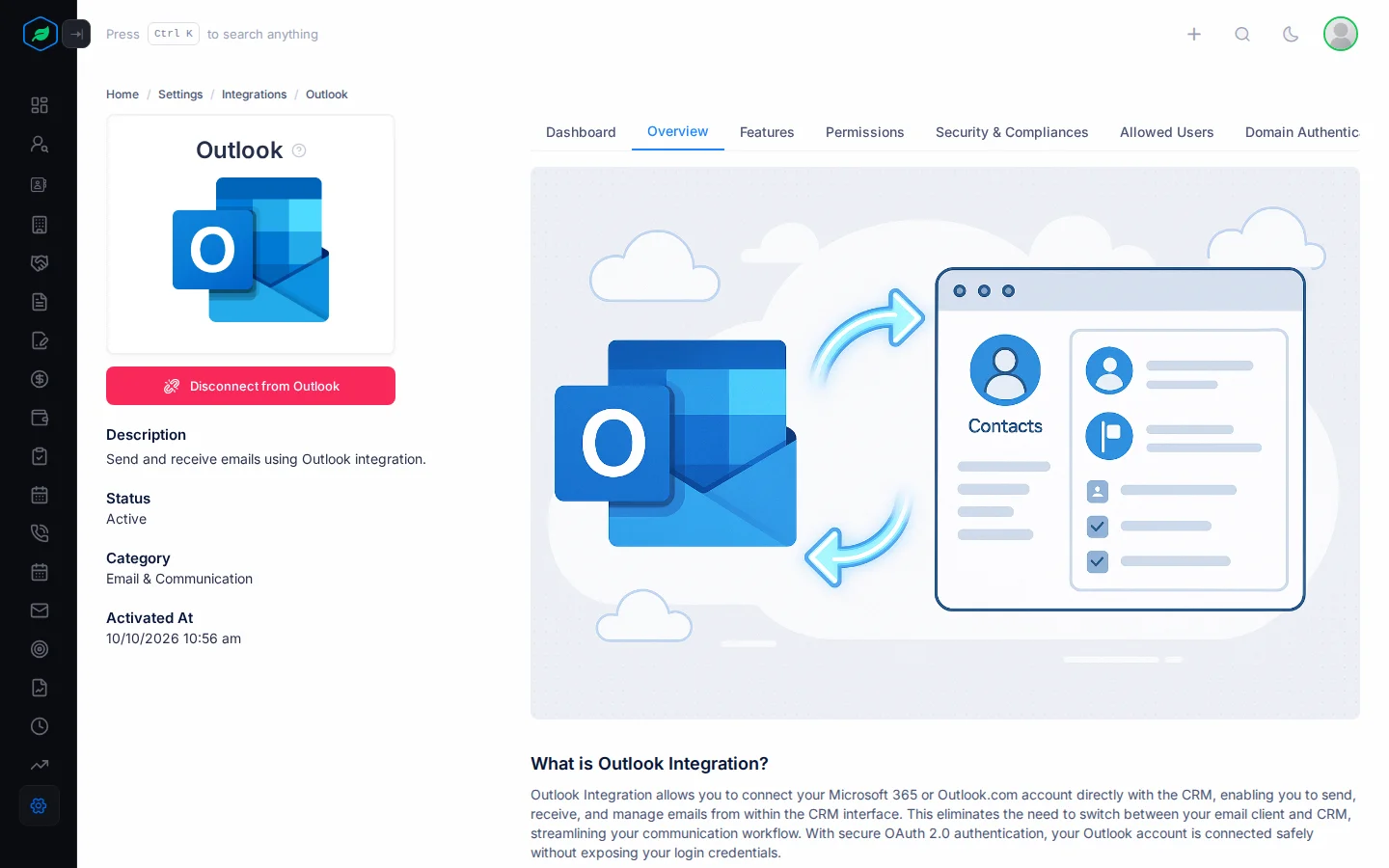
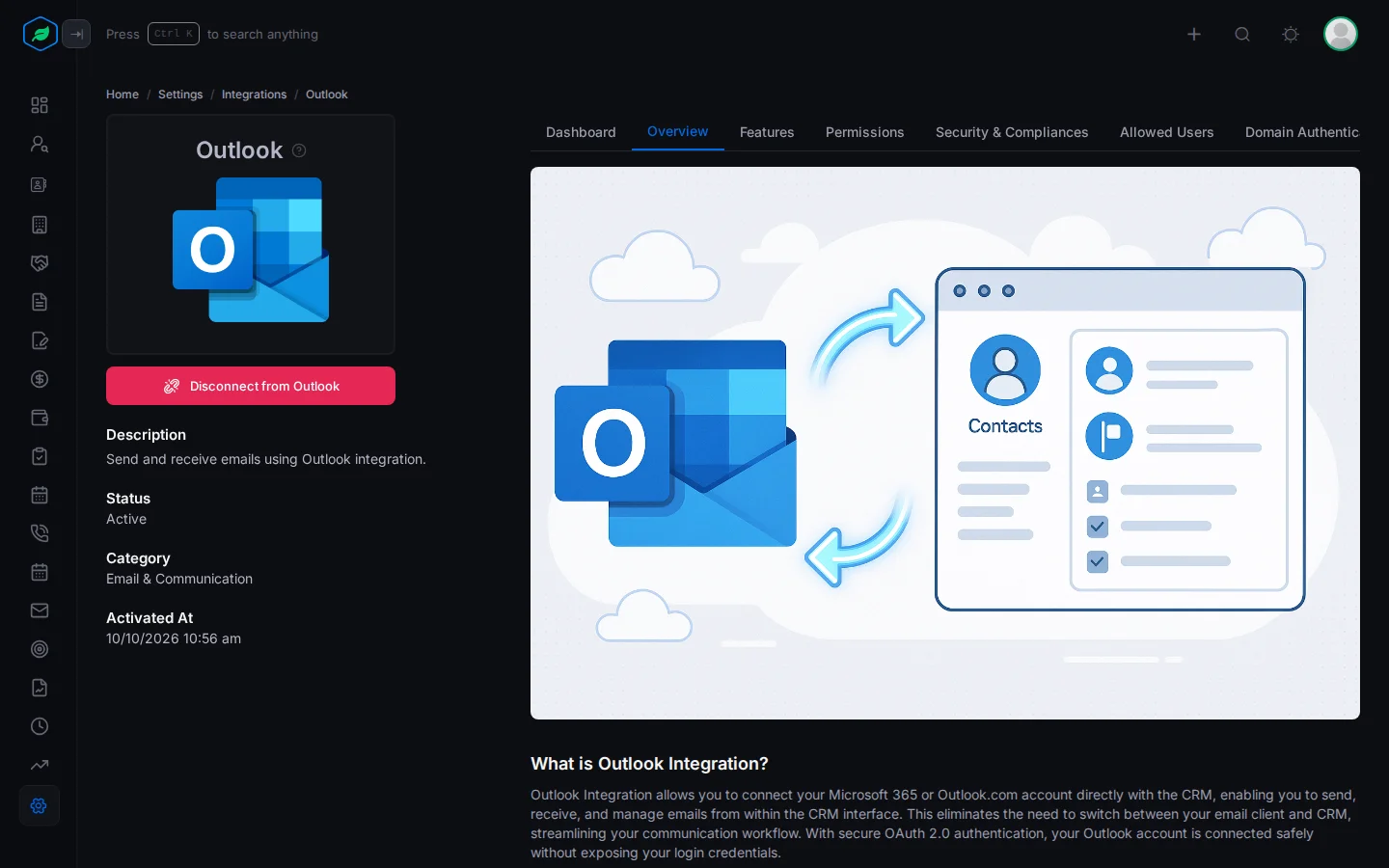
Connecting also adds you to Outlook's Allowed Users list.
What's synced
- Folders: Inbox (Focused only) and Sent Items.
- How far back: the first sync starts from the start of the current month.
- How often: every 5 minutes, between 8 am and 6 pm in your company's timezone.
- What's left out: no-reply addresses, newsletters and bulk senders.
Emails link to leads and contacts by email address. To read and send them, see Email client.
The Dashboard tab
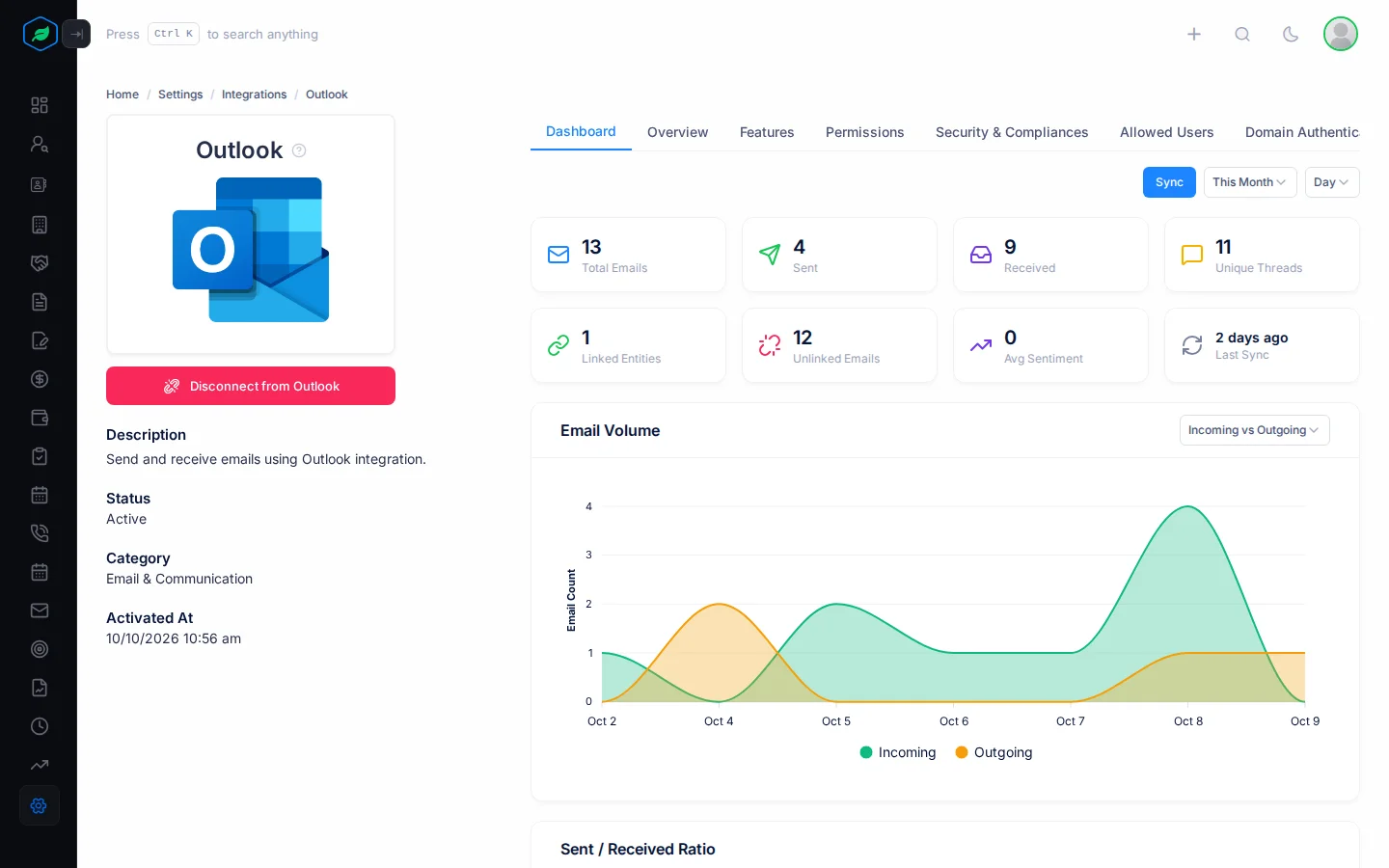
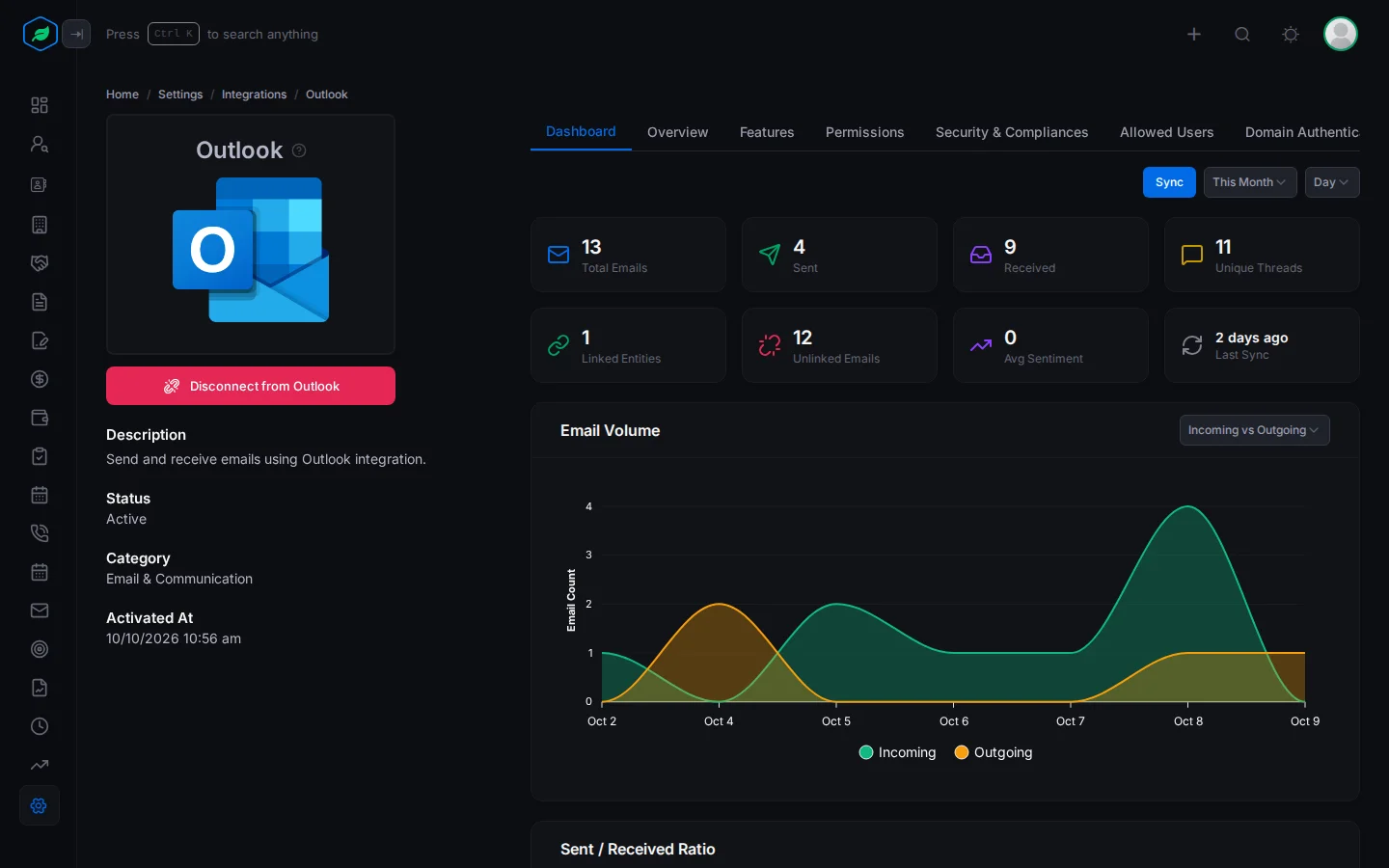
Once you're connected, Dashboard shows figures for your own emails, such as total emails, sent, received, unique threads, and emails not linked to any record. Charts show email volume, response time, sentiment and more. Pick a date range at the top, such as This Month, and Day, Week or Month. Click Sync to sync now.
Choose who can connect it
For people with Manage Integration:
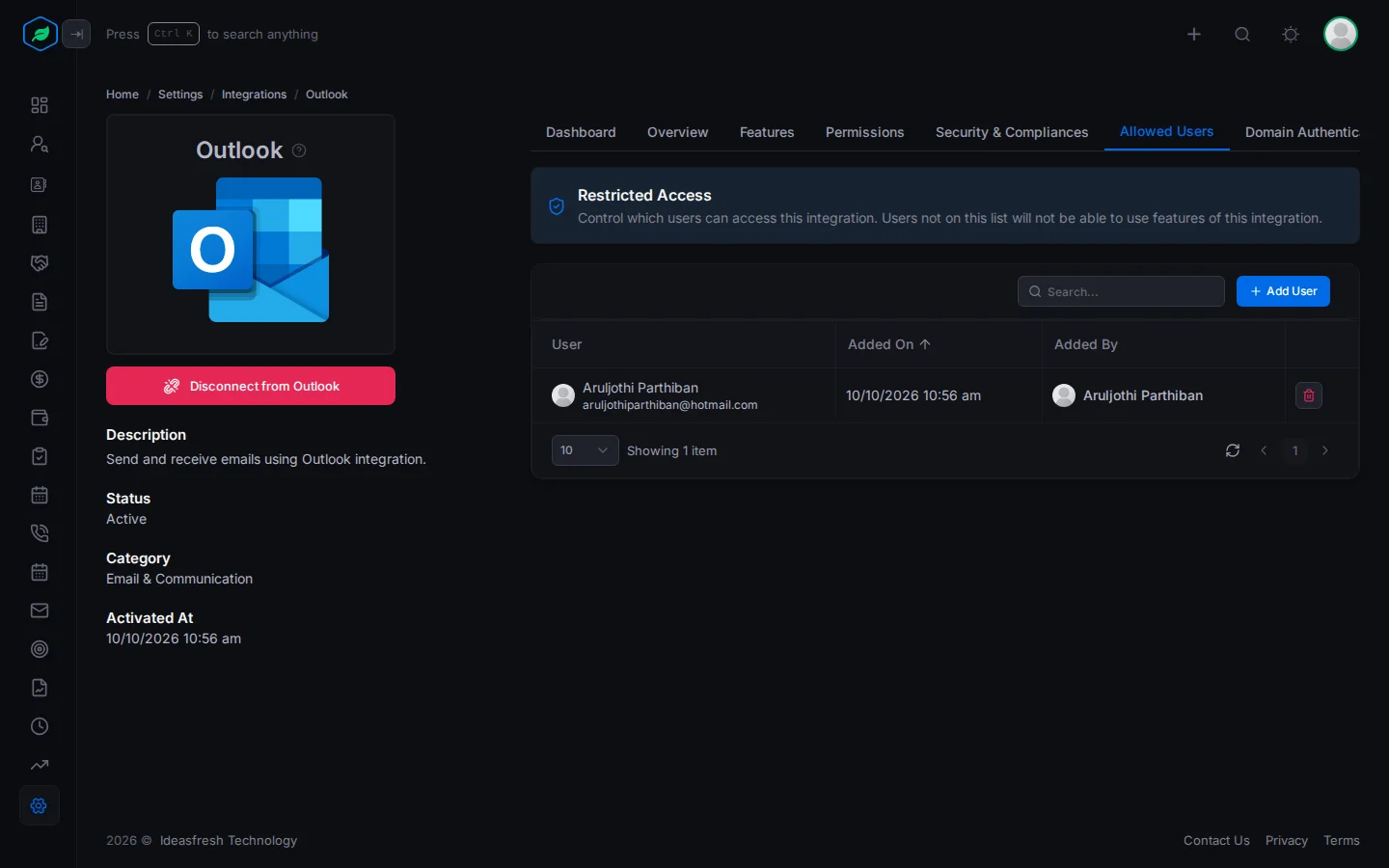
- Click Allowed Users. The list shows each person, when they were added, and who added them.
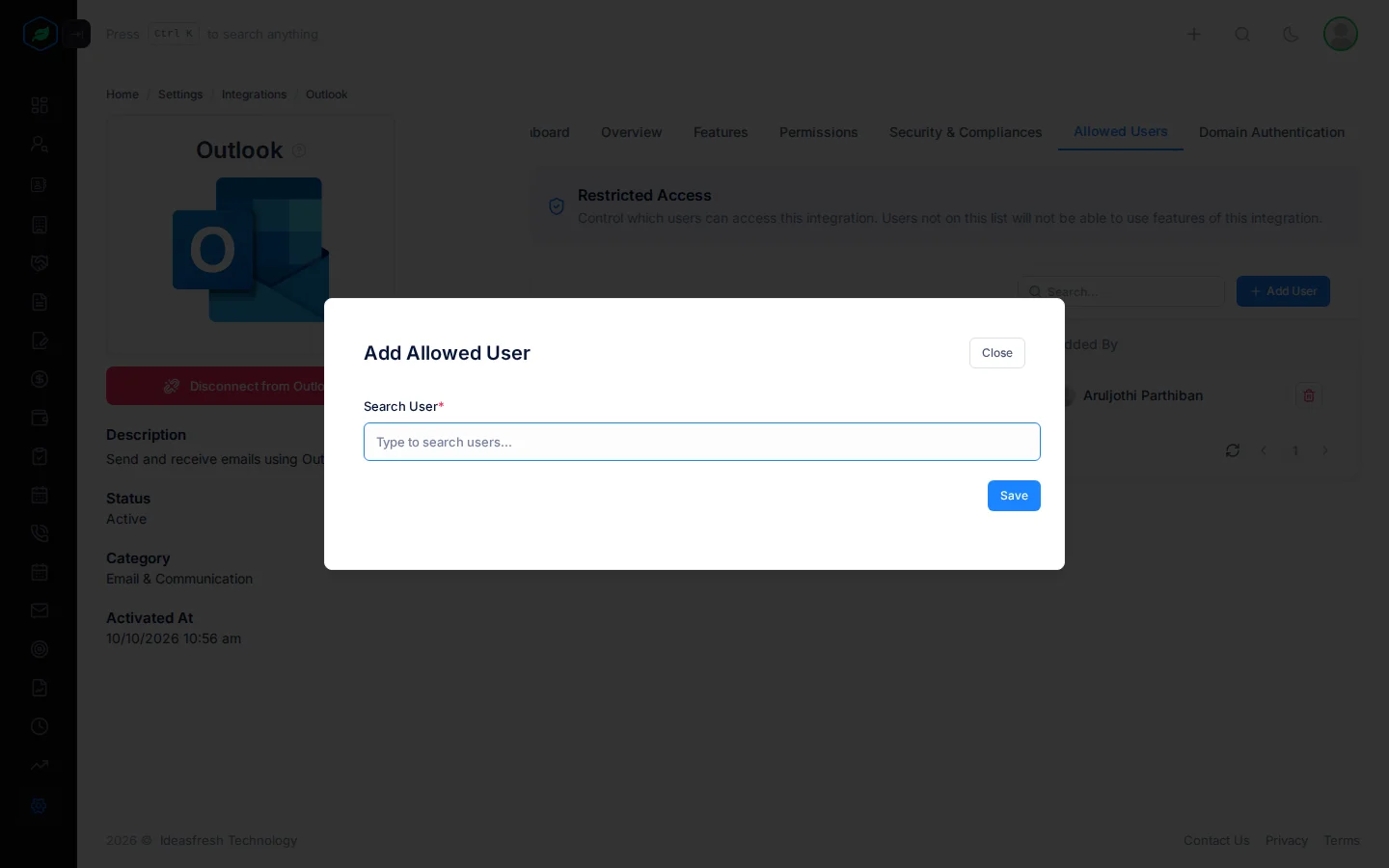
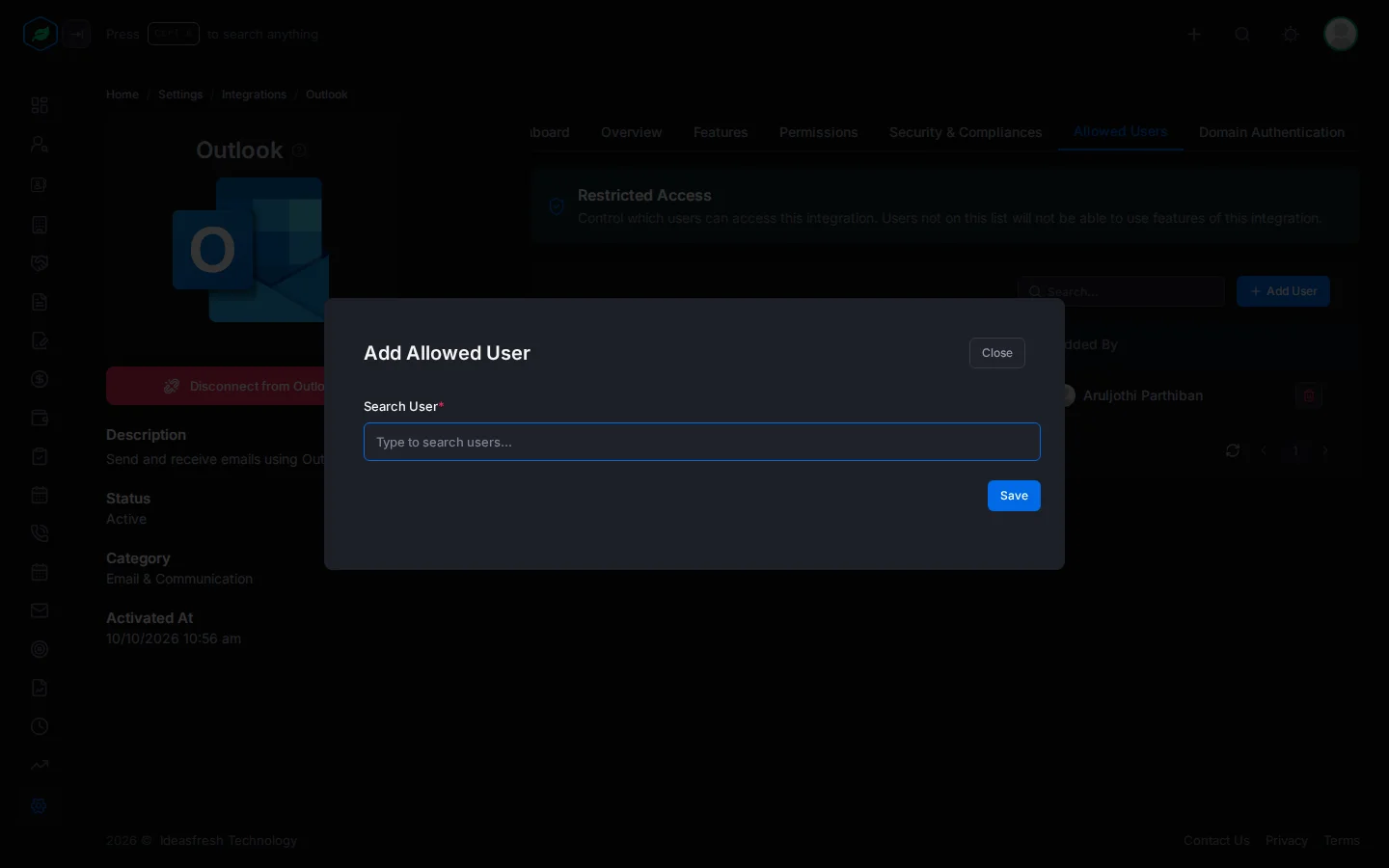
- Click Add User. The Add Allowed User window opens.
- In Search User *, type at least 2 letters of a name, and click the people to add.
- Click Save.
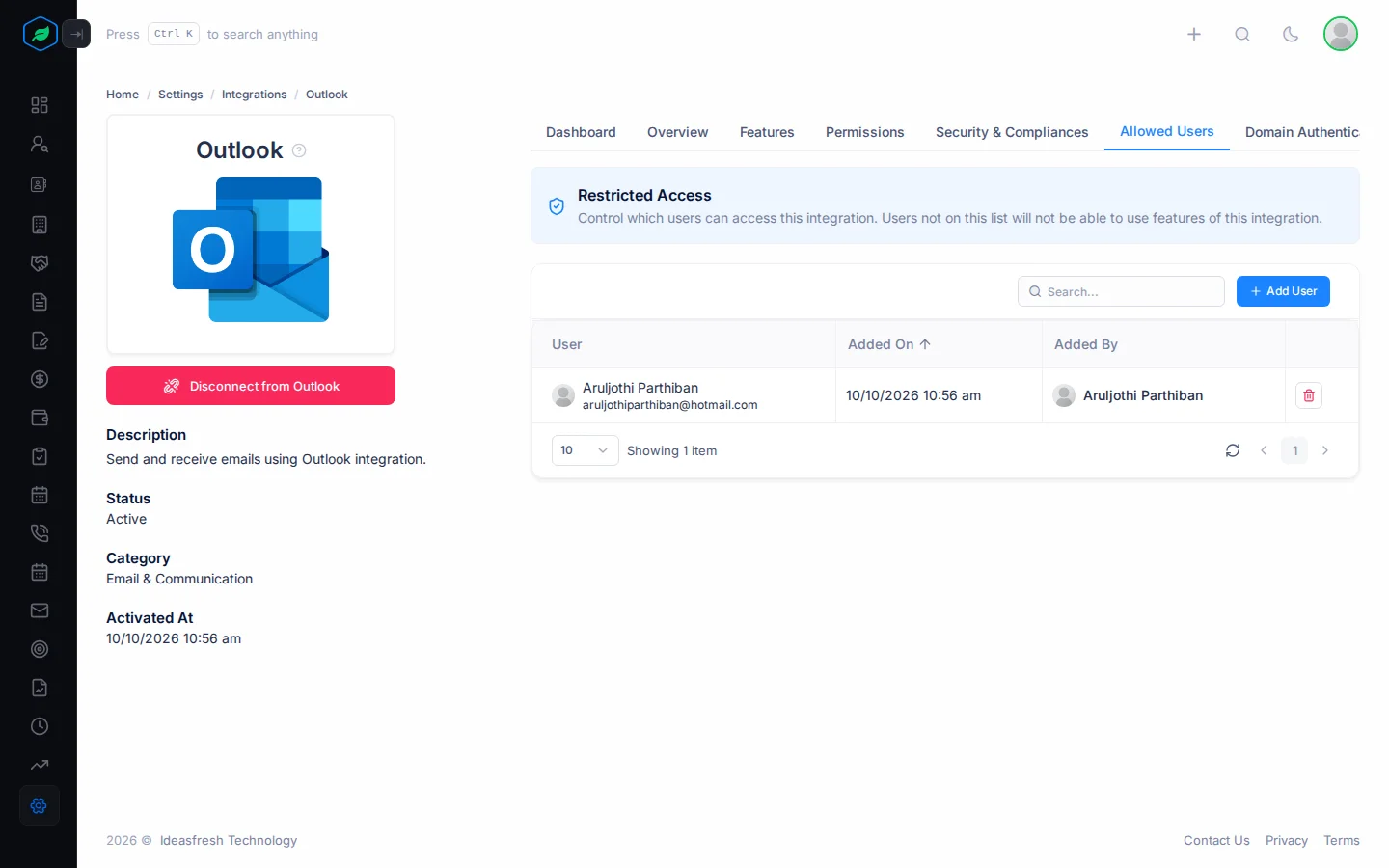
To take someone off the list, click the bin icon on their row and confirm. Each person on the list counts toward your plan's mailbox limit.
To set up your sending domain, see Domain authentication.
Disconnect
- Click Disconnect from Outlook.
- A window asks whether to disconnect your Outlook account. Click Yes.
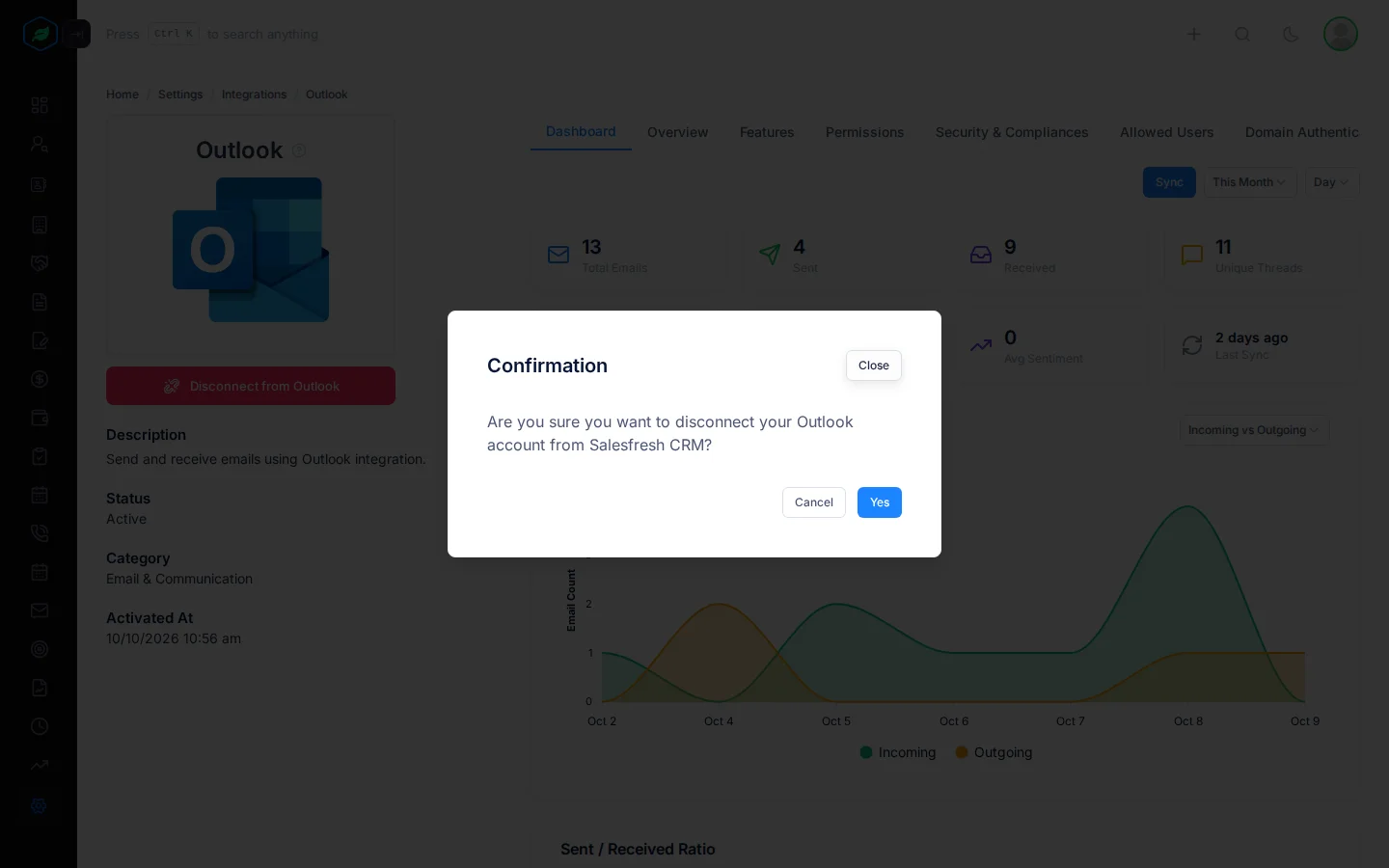
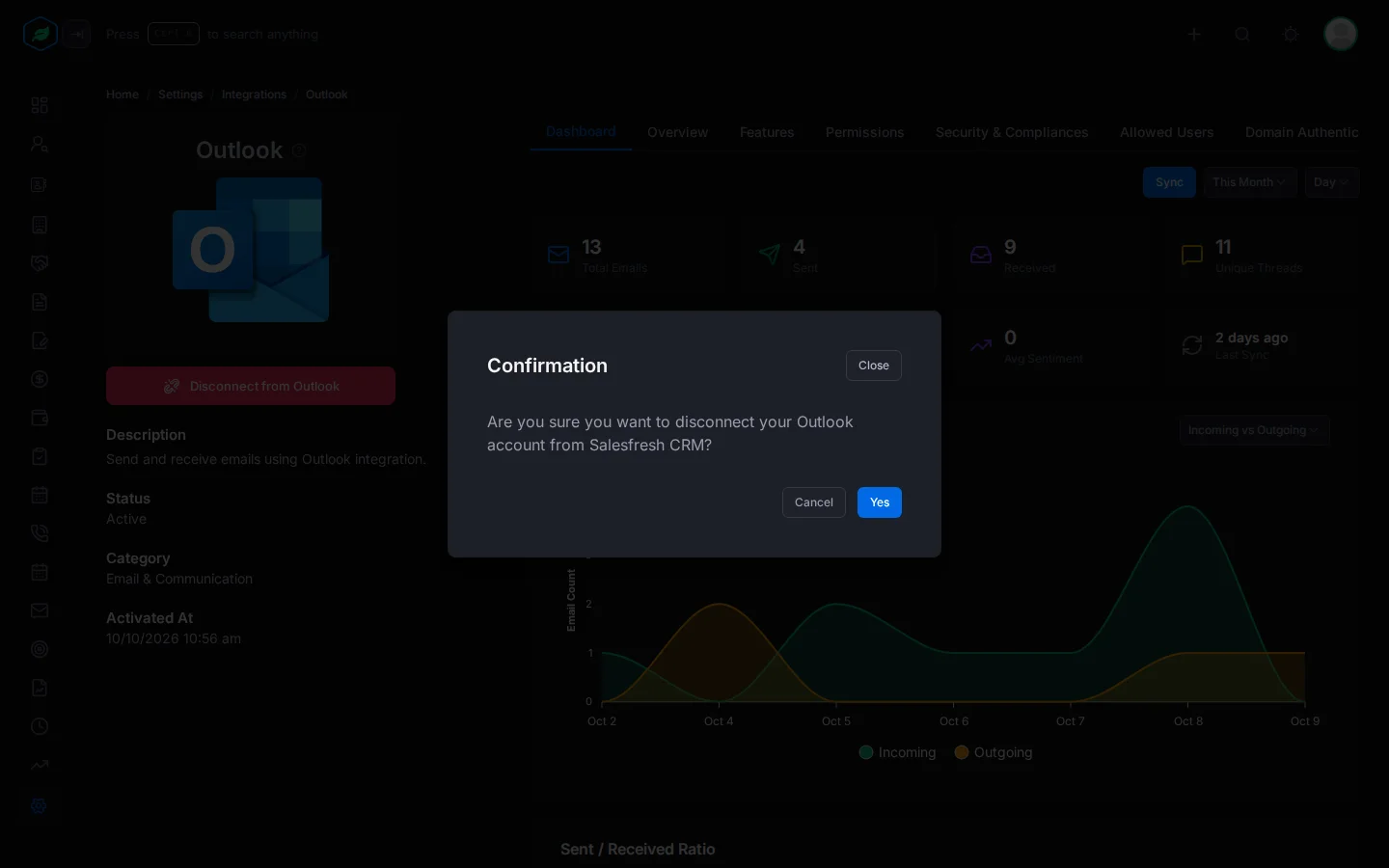
Syncing stops. Emails already synced stay in Salesfresh. You stay on Allowed Users, and still count toward the mailbox limit until someone removes you. Only you can disconnect your own mailbox.
Troubleshooting
| You see | Why | What to do |
|---|---|---|
| "You do not have access to this integration. Ask an administrator to add you to its allowed users." | You're not on Allowed Users | Ask your admin to add you |
| Connect to Outlook is greyed out and says you're already connected to Gmail | You connected Gmail | Disconnect Gmail first |
| "The … account email (…) does not match your registered email. Please connect using the same email." | You signed in to a different mailbox | Connect the mailbox you sign in to Salesfresh with |
| "You have reached the maximum of … synced mailbox(es) on your current plan. Please upgrade for more." | Your plan's mailbox limit is reached | Remove someone from Allowed Users, or upgrade |
| "Authorization code has expired or is invalid. Please try connecting again." | The sign-in took too long | Click Connect to Outlook again |
| "Please select at least one user" | Nobody was picked in Add Allowed User | Click a person first |
Related
Still stuck?
Tell us what you were trying to do and we will help.