Create a role and choose its permissions
Create a role, then tick exactly what it can see and do in each module.
Updated 12 October 2026 · 2 min read
A new role starts with no permissions. You name it, then tick what it can do in each module.
For example, a company wants its support staff to read customer records but not change them. The admin creates a "Support" role, and ticks only the view permissions for contacts, accounts and subscriptions. Support staff can now look up any customer, but can't edit or delete anything.
Before you start
- To create a role, you need the Create Roles permission. To set its permissions, you need Edit Roles. If you don't have them, ask your admin.
Create the role
- Go to Settings > Manage Roles.
- Click Create Role. The Create Role window opens.
- Fill in the fields. Both must be filled in.
- Click Create.
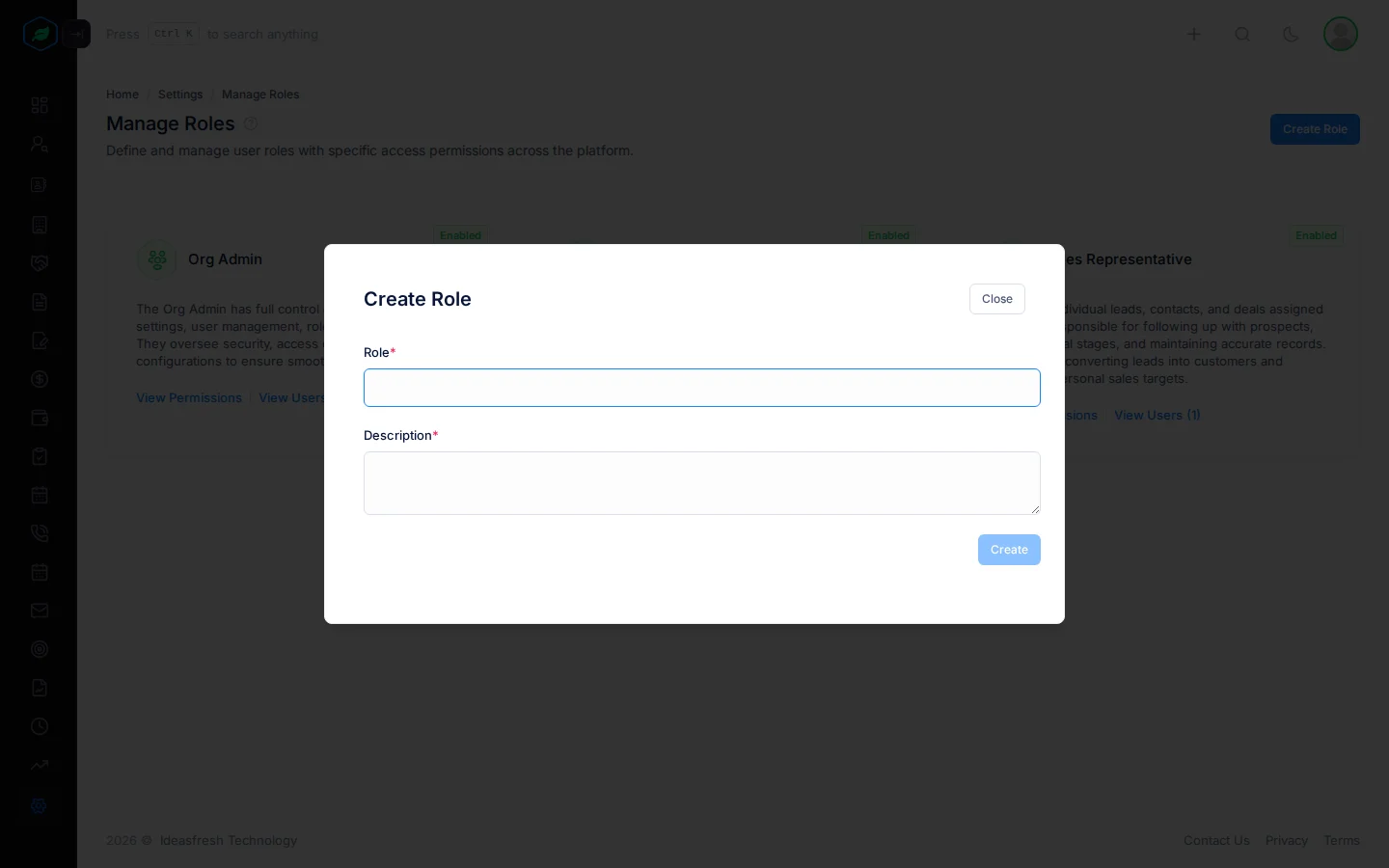
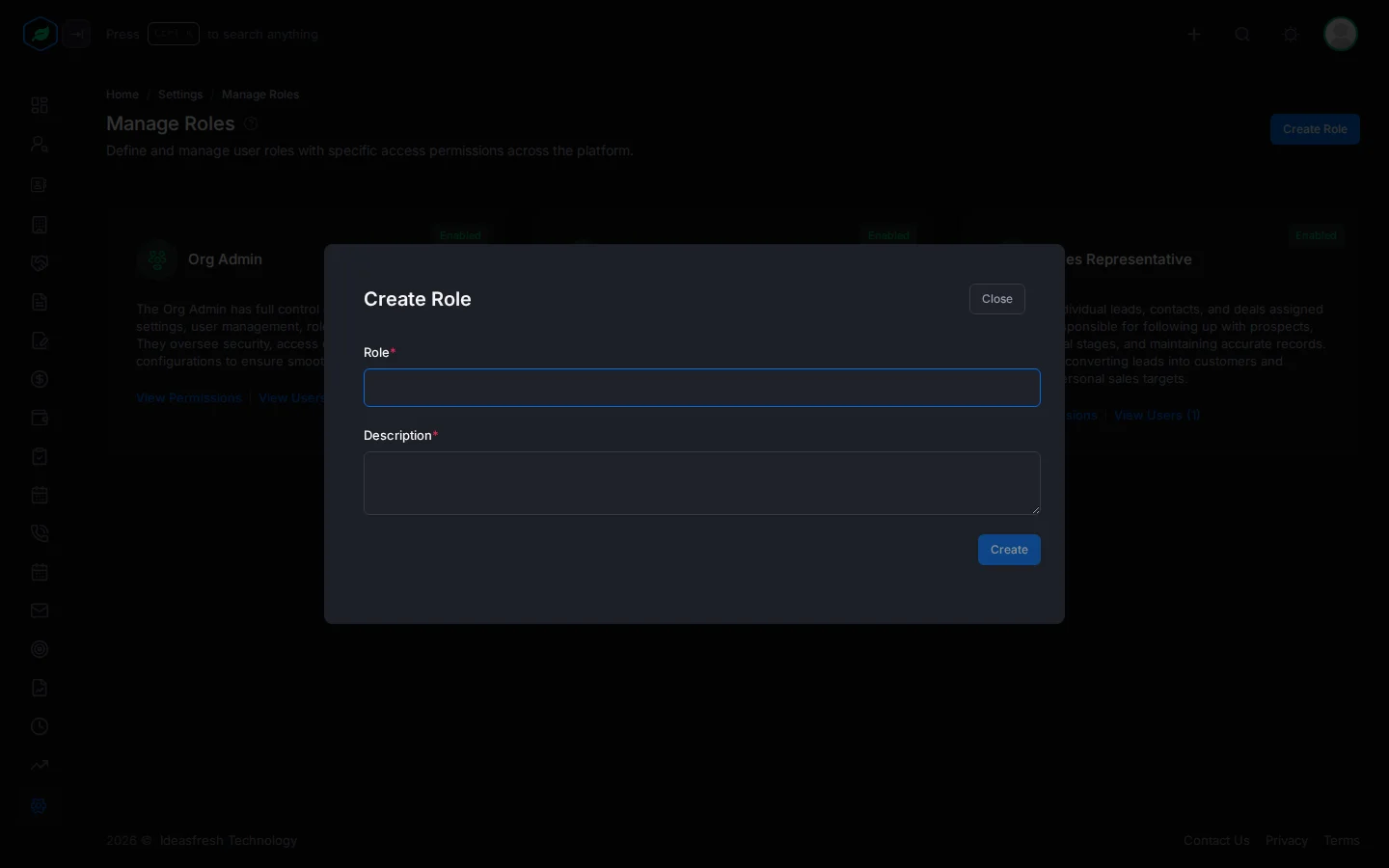
| Field | What to enter |
|---|---|
| Role * | The role's name, up to 30 characters, such as "Support" |
| Description * | What people with this role do, up to 255 characters |
Choose its permissions
- On the role's card, click View Permissions.
- Tick what the role can do. Permissions are in boxes, one for each module, such as Leads or Manage Users. Each permission has a short description.
- Click Save. It's greyed out until you change something.
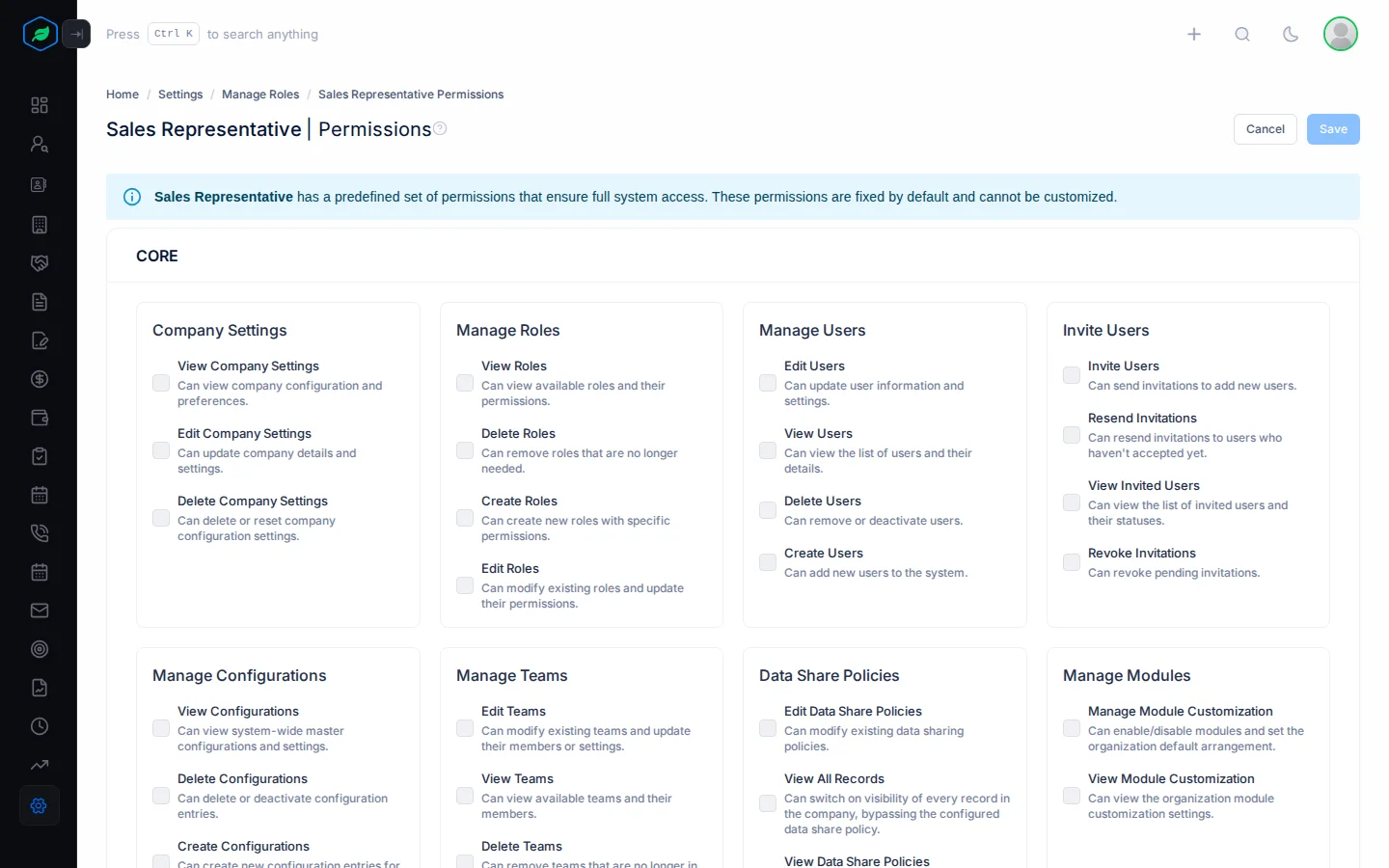
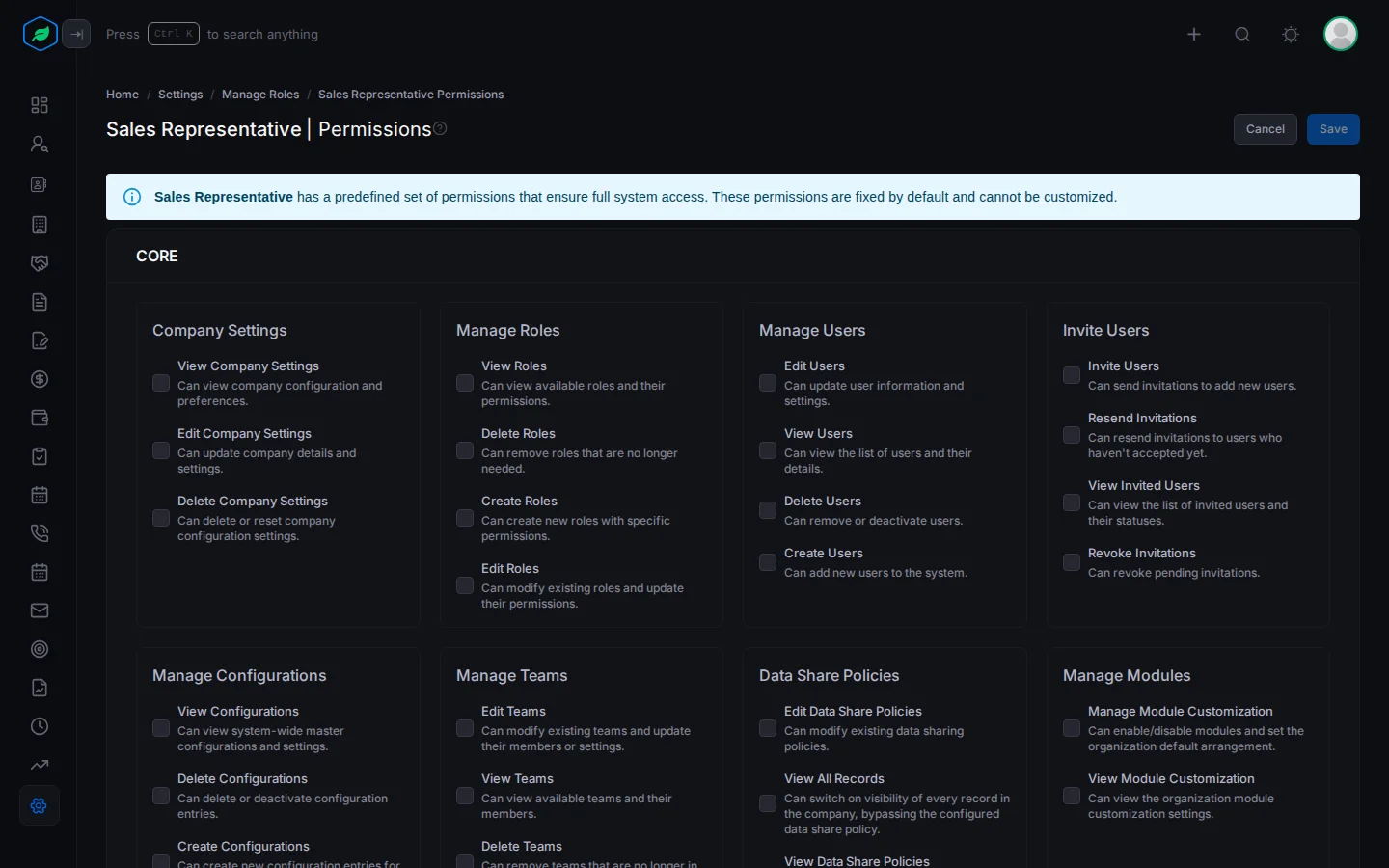
On a built-in role, the checkboxes are greyed out and a banner says its permissions are fixed.
Give the fewest permissions people need. You can add more later.
The people with the role must log out and back in before the new permissions apply.
Troubleshooting
| You see | Why | What to do |
|---|---|---|
| "Role already exist" | Another role has that name, maybe a deleted one | Pick another name |
| "Role name can't be longer than 30 characters." | The name is too long | Shorten it |
| "Role is required" or "Description is required" | A field is empty | Fill it in |
Related
Still stuck?
Tell us what you were trying to do and we will help.